Adjusting your Notifications Within SW2
Within the application users have the option to either enable or disable various notification types. This manual will explain each notification type and how you can adjust your notification settings at any time!
Notification Types:
- Missed Inspections:
- If/when an inspection does not get submitted by its due date, the system will send out a notification indicating that the inspection has been missed.
- Inspection Ready to Sign:
- When an inspection report contains either an Acknowledgement or Compliance Certification that is eligible to be signed.
- There are some cases where these secondary certification types will be locked until findings associated with those reports have been closed/completed.
- Upcoming Monthly Inspection:
- This is a notification for projects that have an Inspection Frequency set to 30 or 31 days, also known as a Monthly Frequency. SW2 will send out a notification 7-days prior to the day an inspection is due as a reminder to the inspector and other project contacts.
- Overdue Findings:
- This is a daily, email, notification that will inform users if there are any overdue, open, finding on projects they are associated with.
- Users have the ability to enter in a numerical value to set when they would like to be notified. For example entering a value of 7 will the the system send you a daily email listing all project where findings have been open for 7 days or more.
- Inspection Complete:
- When an inspection has been submitted, SW2 will send out a notification that an inspection has been completed. The email notification will also attach a PDF copy of the inspection report. Note: this notification is triggered when a user signs the Inspection Certification.
- New Project:
- When a project is assigned to a user, SW2 will send out a notification to that user that they now have access.
- Software Update:
- This notification is sent out to all users registered with SW2. The purpose of this notification is to publish what updates are being made, explain any new features that will be released, and notify users if any downtime that may occur.
- Daily Precipitation Notification
- This daily notificaton is sent out ot registered users who are added as a contact to each project and that project is actively tracking precipitaion. This notification is triggered when a rain and or snow threshold, set within each project, is met or surpassed. The email notificaiton will include a list of all project that had the threshold met or surpassed and will include the total Rain / Snow ammounts.
- The totals shown are between 06:00 am previous day to 06:00 am current day.
- Inspections Due:
- This notification is sent out to registered users who are assigned as the primary inspector for projects. This email only notification type will list out all projects/inspections that are due for the current day. Next to each project will be a quick link button to start the inspection.
Types of Notifications:
- In-App: (Left Column)
- The in app notifications can be found at the top right hand of the screen by clicking on the “Bell Icon”
- Email Notification: (Middle Column)
- Notifications are sent to the user’s email address on file.
- SMS – Text Message Notification: (Right Column)
- A text message is sent to the user’s phone number on file and only apply to the following Notification Types.
- Missed Inspection
- Inspection Ready to Sign
- Inspection Complete.
- A text message is sent to the user’s phone number on file and only apply to the following Notification Types.
Accessing the Notification Settings
- Click on your name located at the top right corner of the screen.
- Click “My Profile”
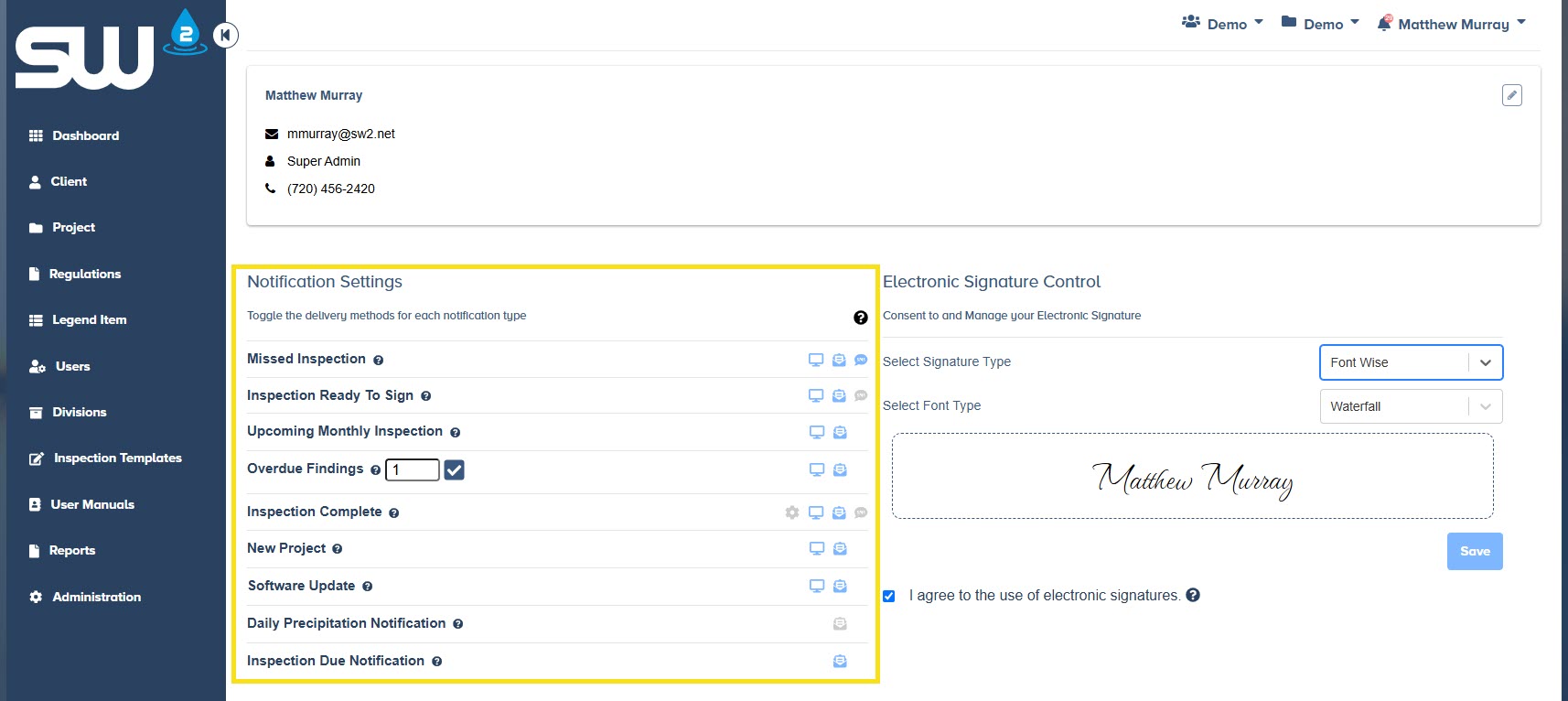
- A blue Icon indicates that notification has been turned ON.
- These settings can be changed at any time!