How to manage Open Findings from your Desktop
Log into SW2 from your device
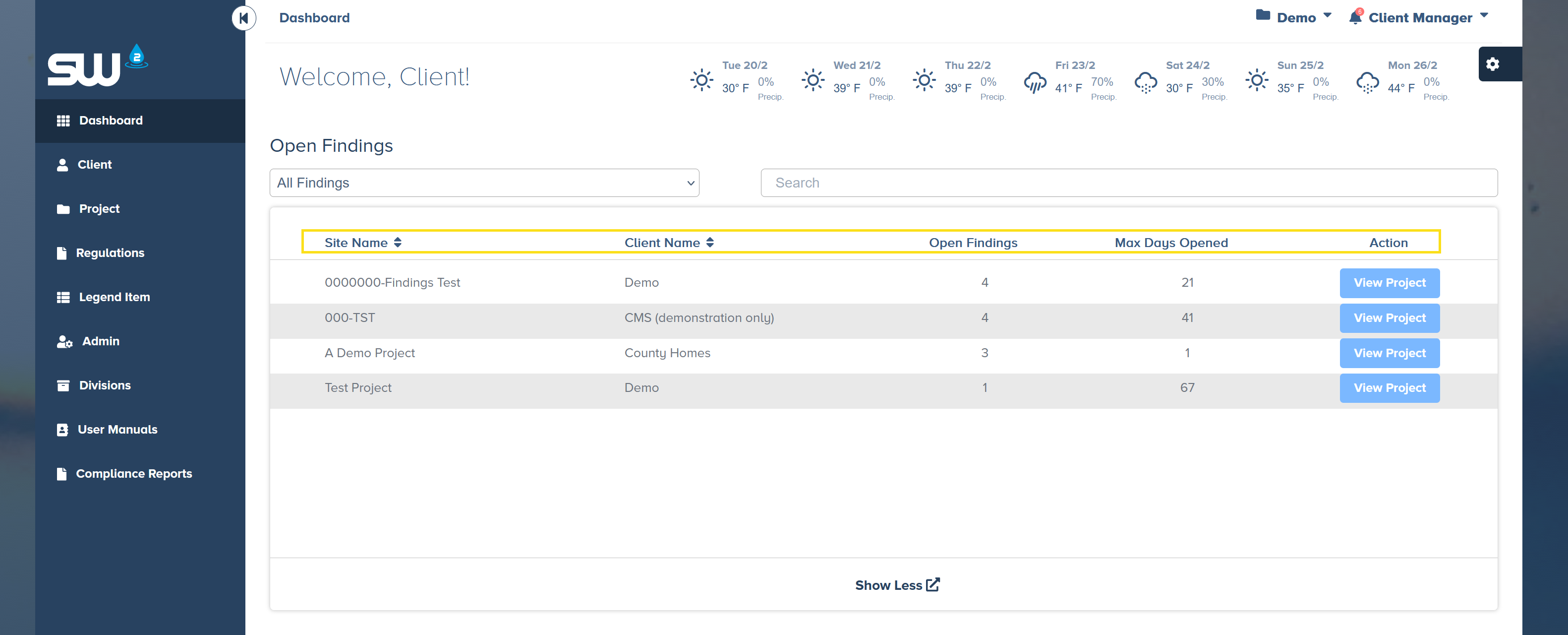
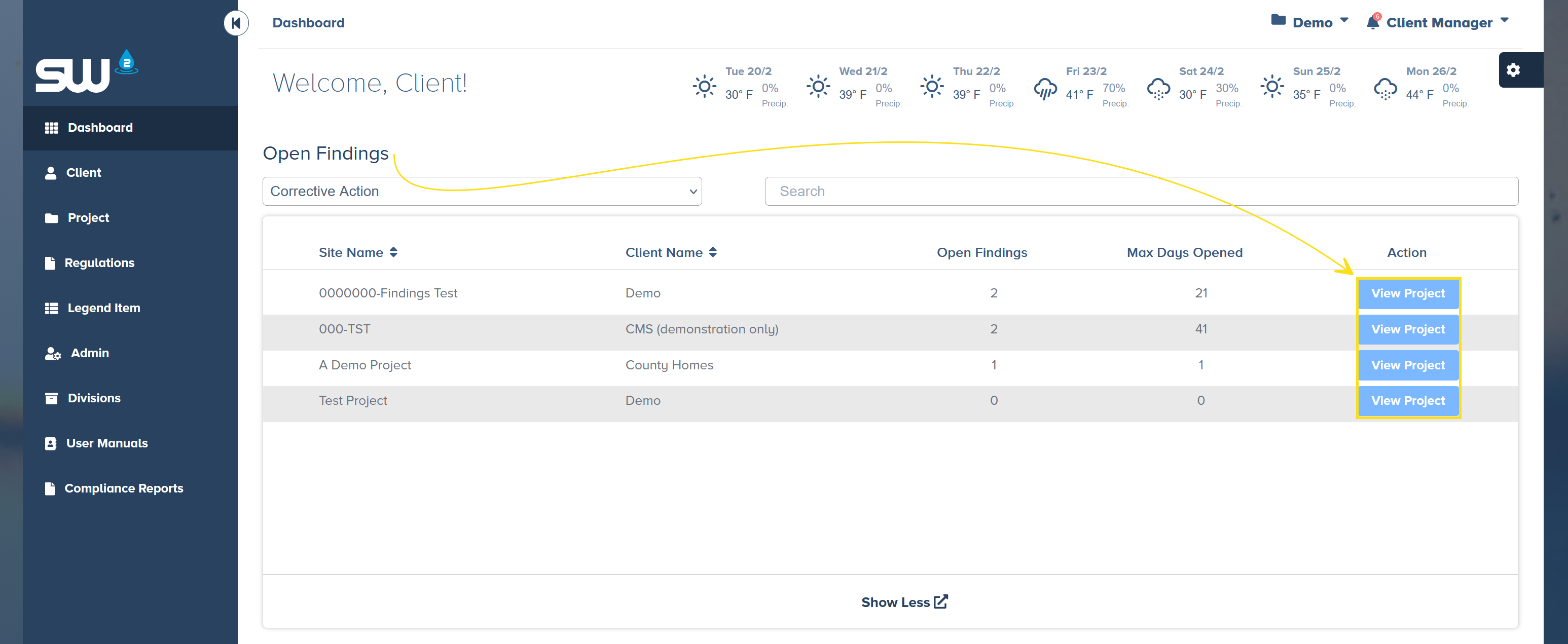
Locate the Open Findings widget. This widget will allow users to:
- The Site Name
- The Client Name
- Number of findings currently open in each project
- The age of the oldest finding for each project
- An Action button to access each project.
Users can search for and isolate specific projects and use the drop down to sort between specific finding types updating the data points to reflect that choice.
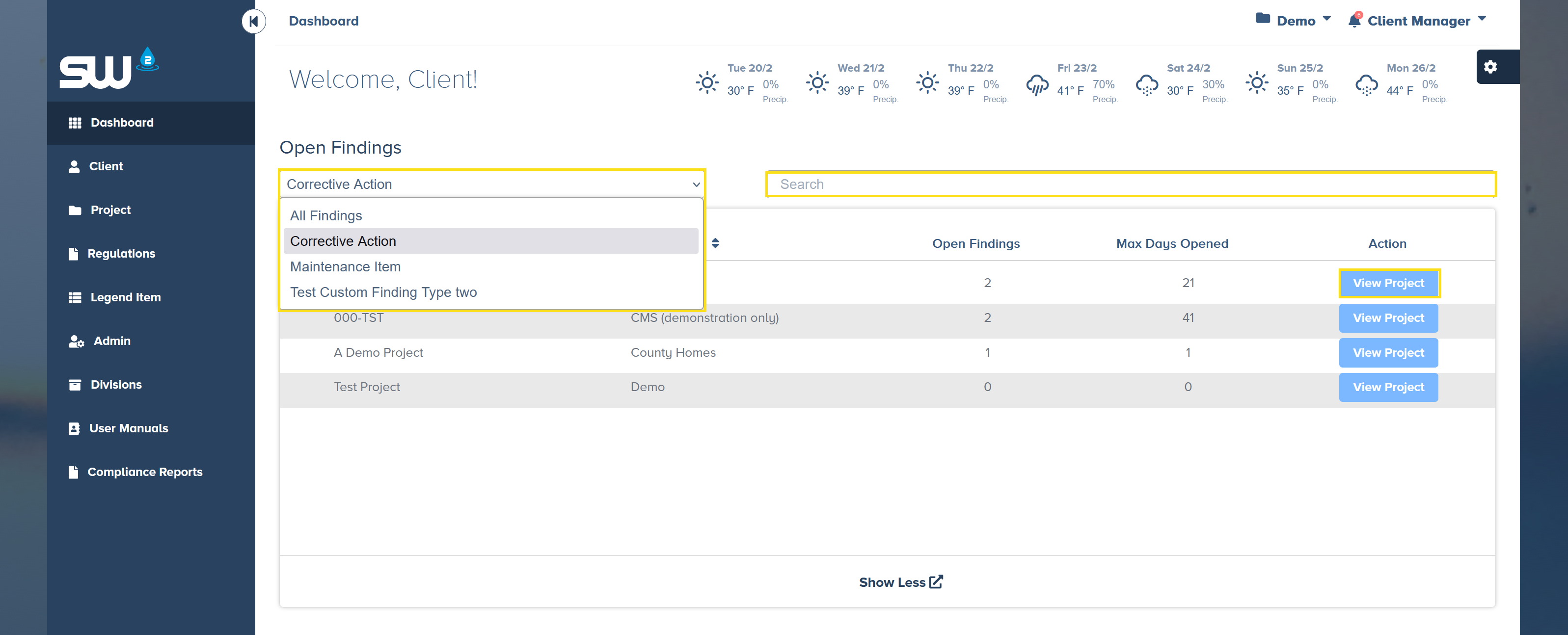
To view and or manage finding, click the quick link located in the far right column of the widget. This link will bring users to the All Inspections tab withing a project.
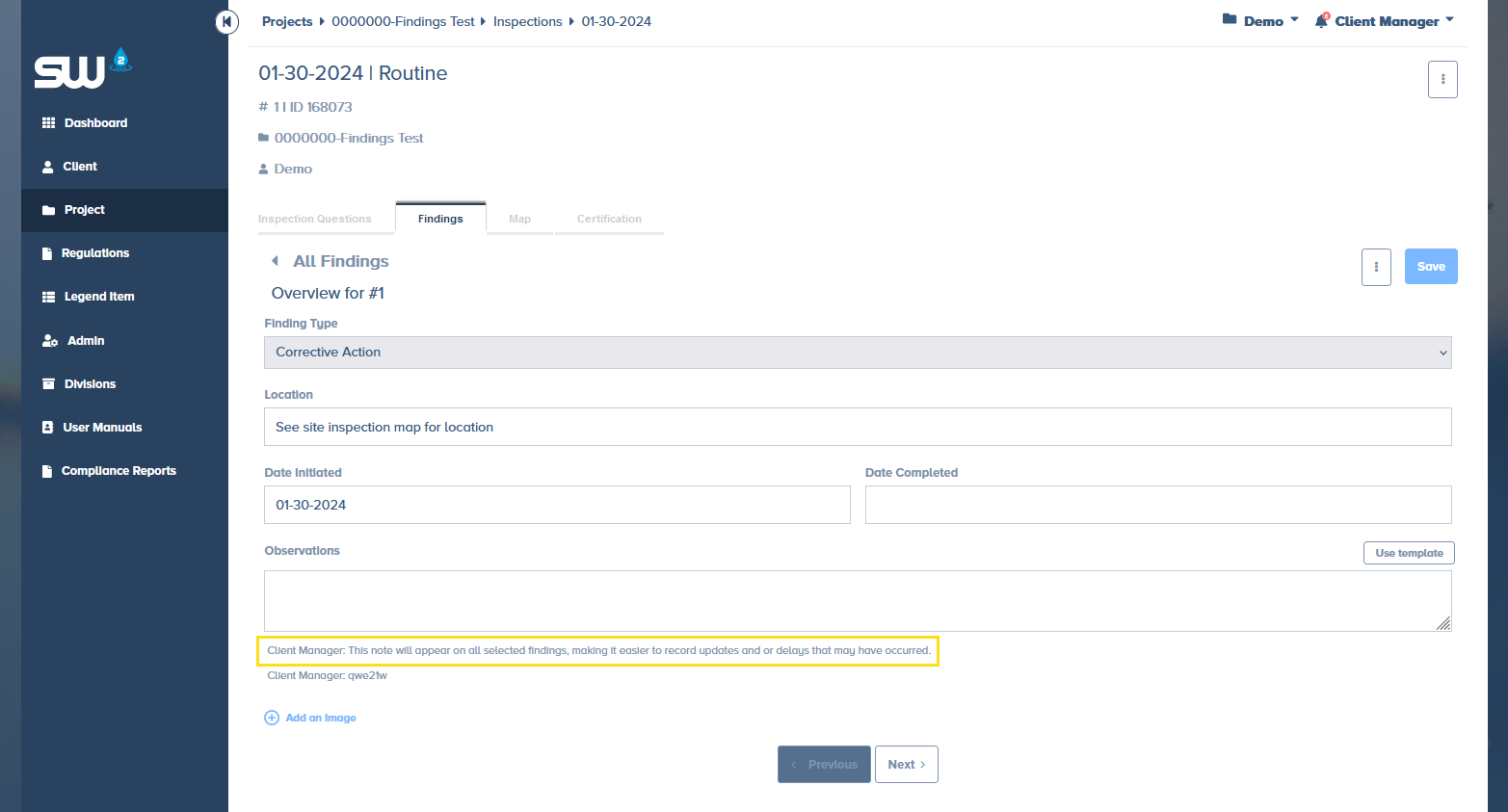
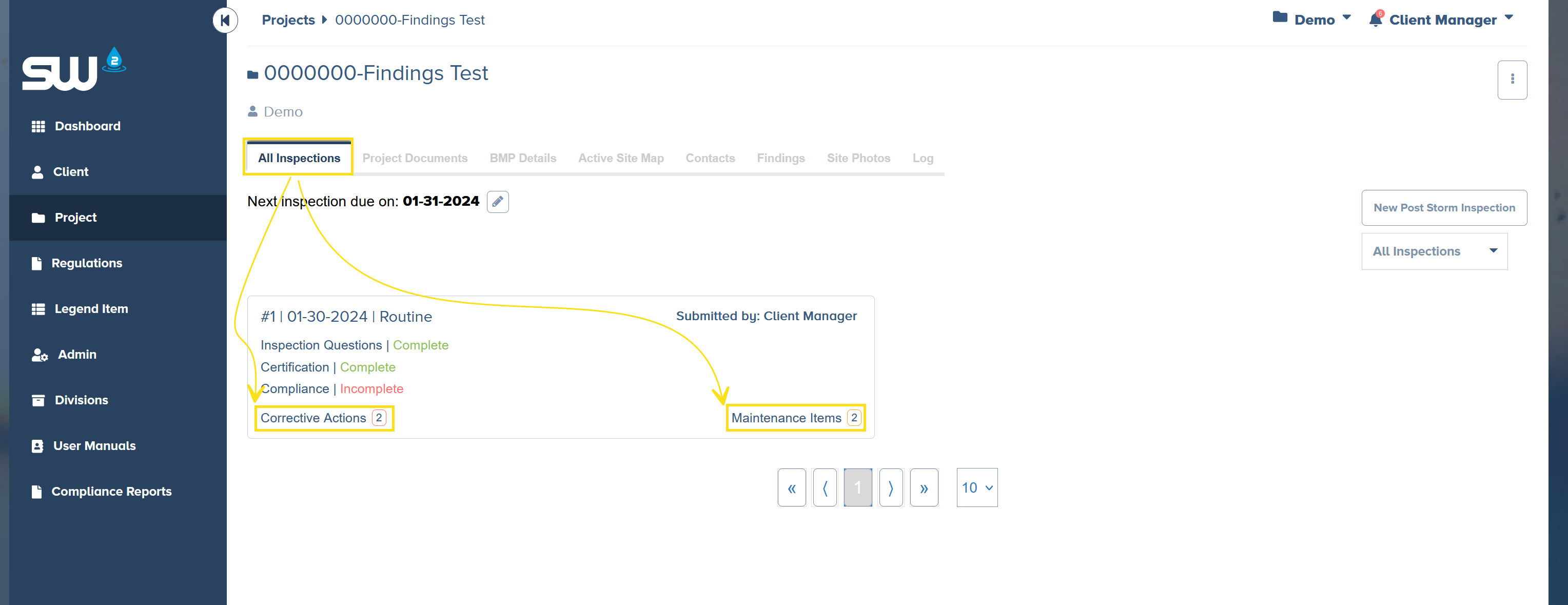
From the All Inspections tab users will be able to see what inspection have open findings. From here open an inspection report and access the Findings tab within that report.
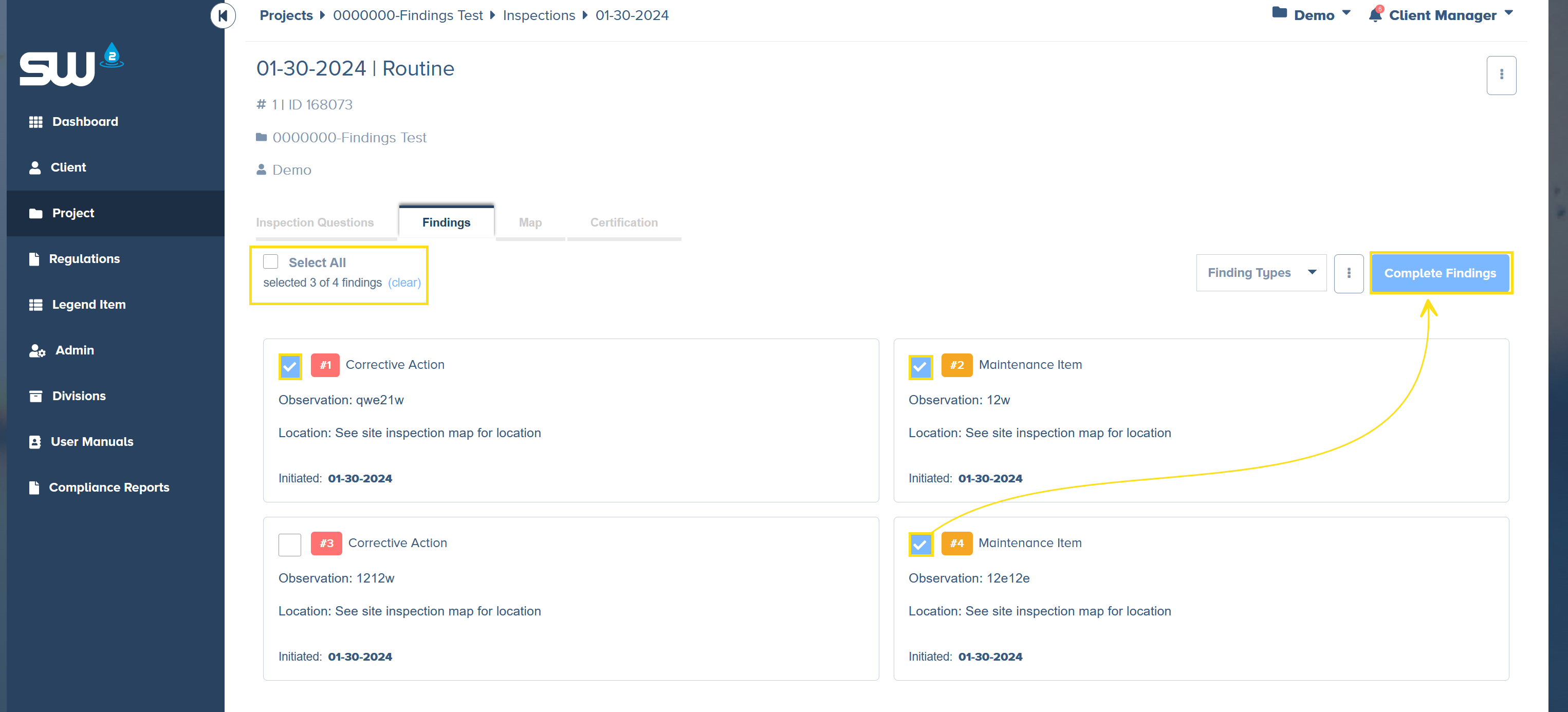
From the Findings tab,, within a specific report, users can select One, Multiple, or All open findings to certify.
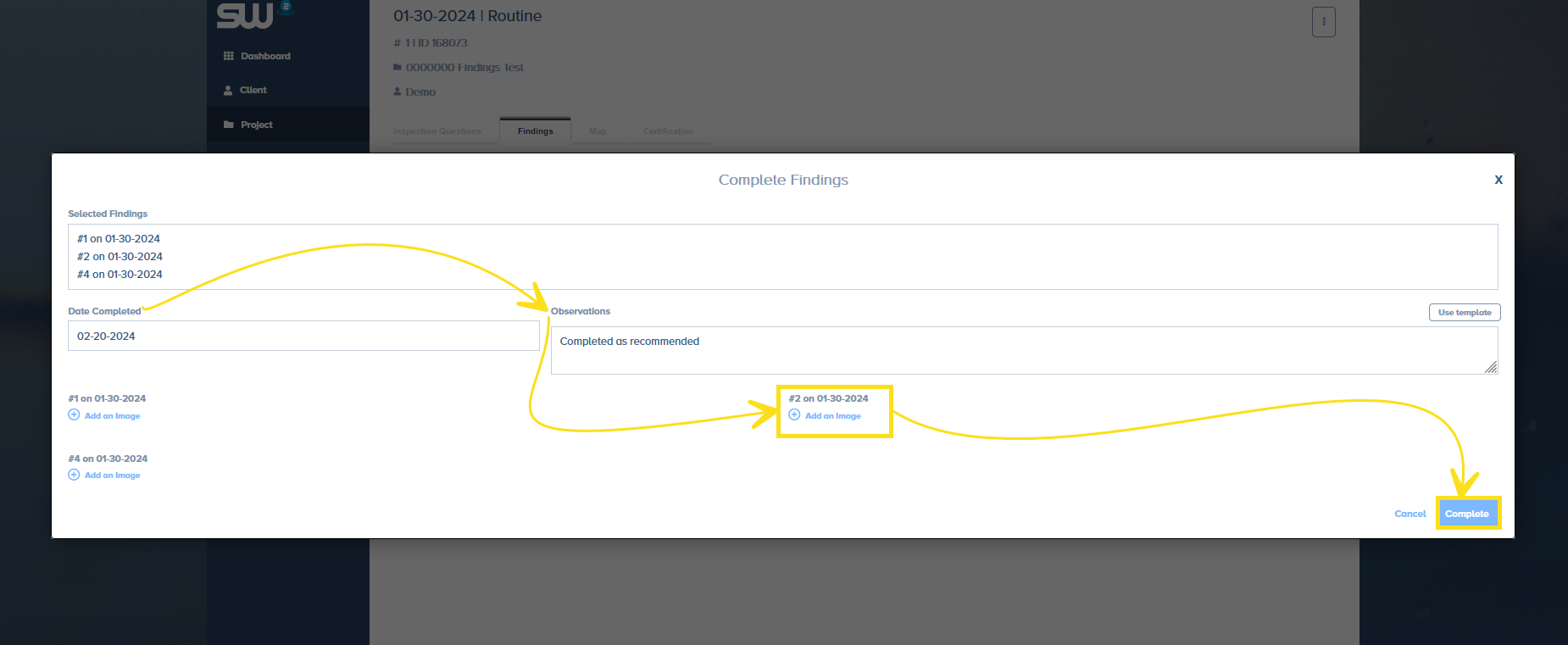
Once Complete Findings is clicked, a a pop up will appear allowing users to enter in the following information:
- Date Completed
- This can be backdated to the actual date of completion!
- Observation
- Helpful Hint: The Observation Section is your opportunity to convey important message about the findings. Examples include an explanation of what has been corrected or any issues faced.
- Add Pictures
- Optional!
- “Complete” Finding
- Once clicked, any finding that has a Date Completed included will be closed.
Note: Only select findings that will have the same completed date
How to Make Observations Across Multiple Findings
From the Findings tab within a specific report, select / check the findings that require the same observation. Once selected, click Add Notes.
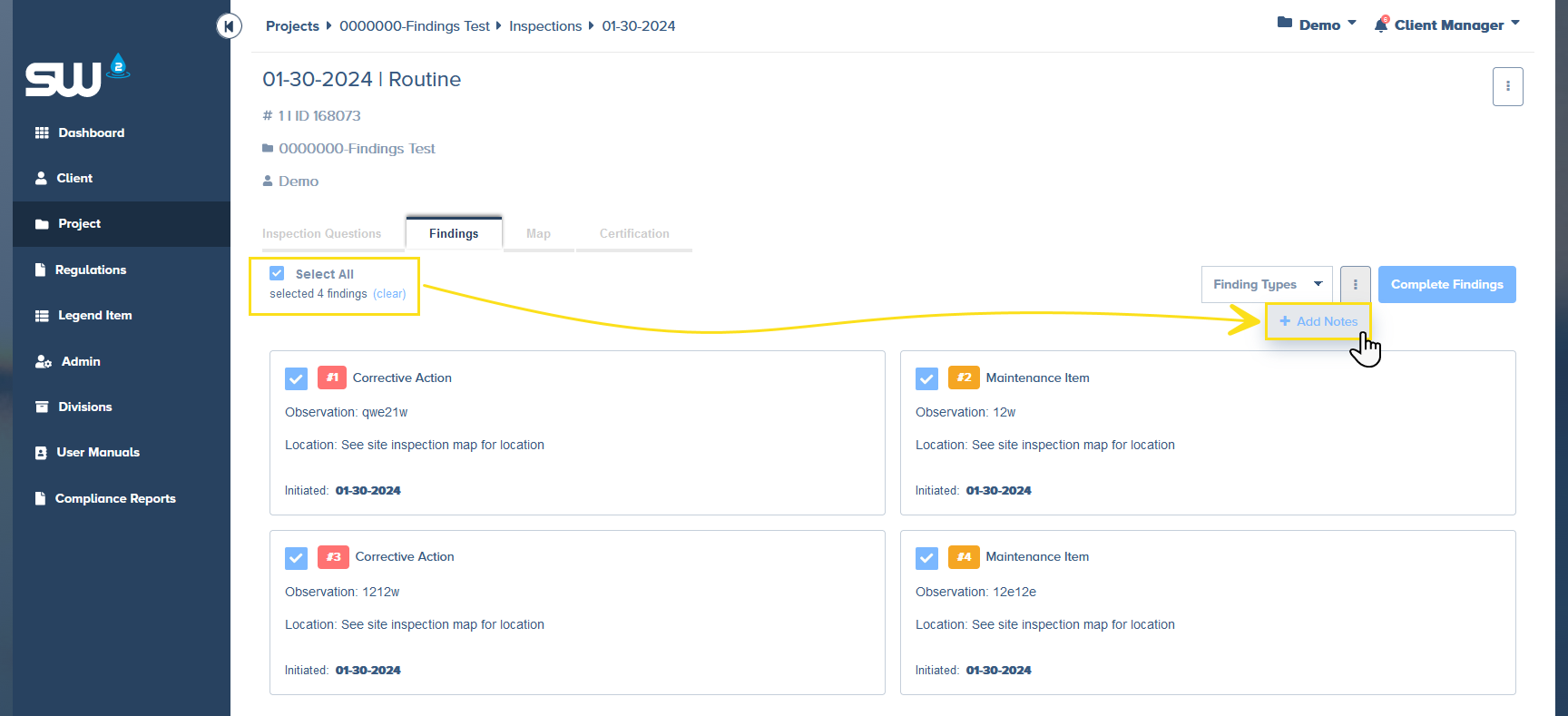
A pop up will appear allowing users to record a note that will appear on all selected findings. Click Ok to save the note.