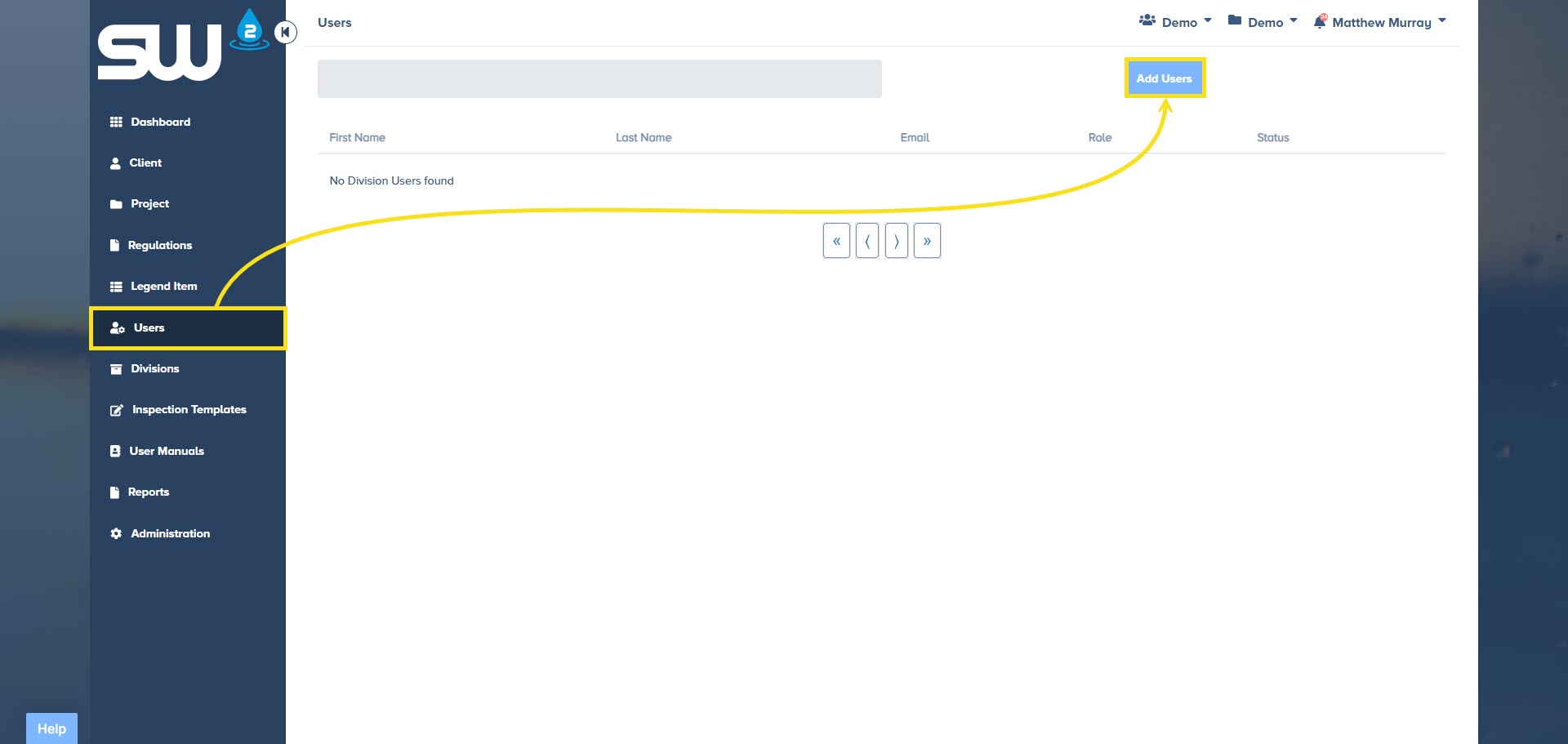
Users can be invited to SW2 by accessing the Users Page. When a user is invited you will have the option to assign a User Role type as well as assign them to specific Clients and Projects. Use the Users Page at any point to provide or remove access to specific Clients and or Projects.
Adding a User from the Users Page
- Access the Users Tab located on the navigation bar, left hand side of the screen.
- Ensure you have selected the correct Division by using the drop down located next to your name at the top right corner of the screen.
- Click Add User.
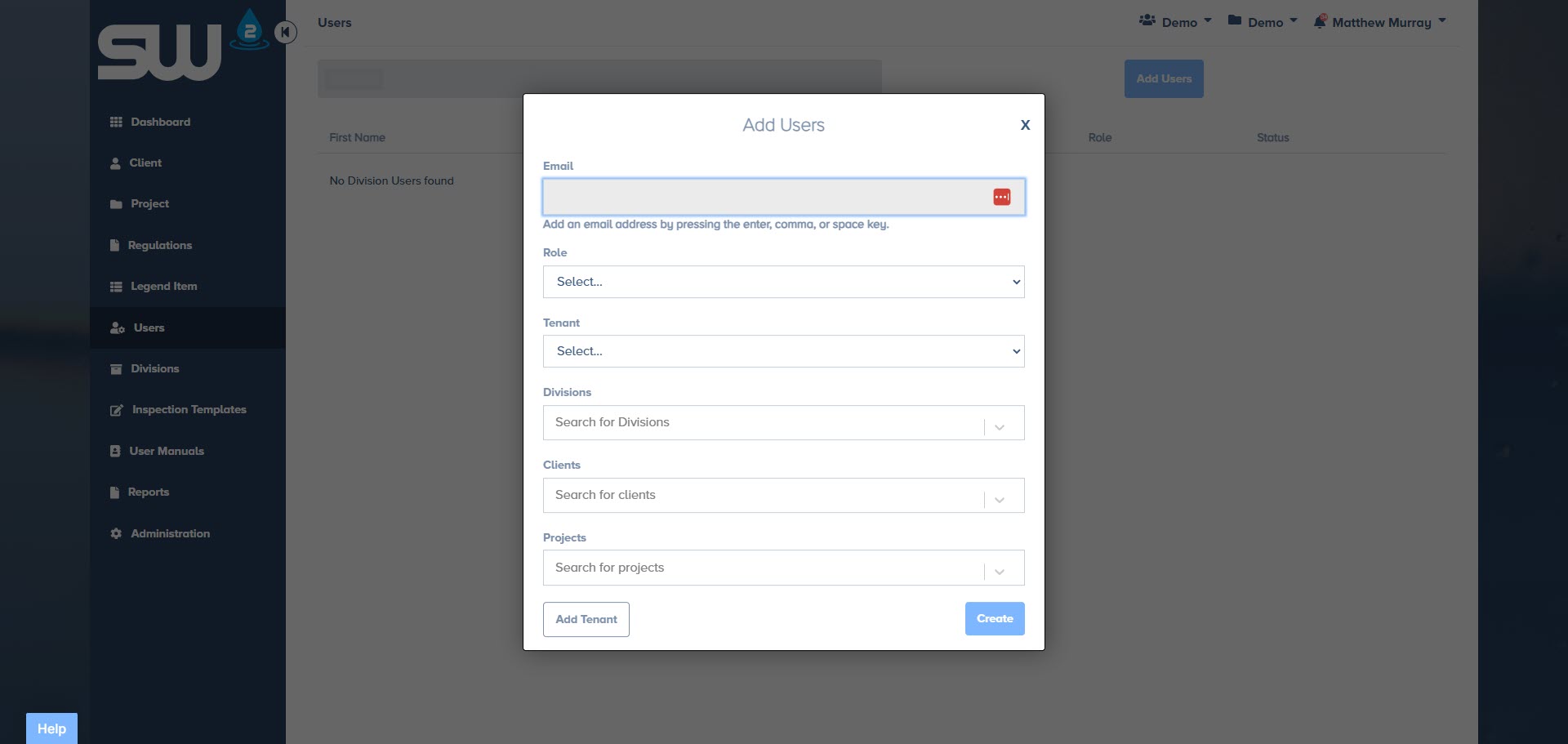
Email, User Role, Tenant (Account), and Division are all required. You may choose to pre-assign new user(s) to clients and projects so that access is provided upon registation.
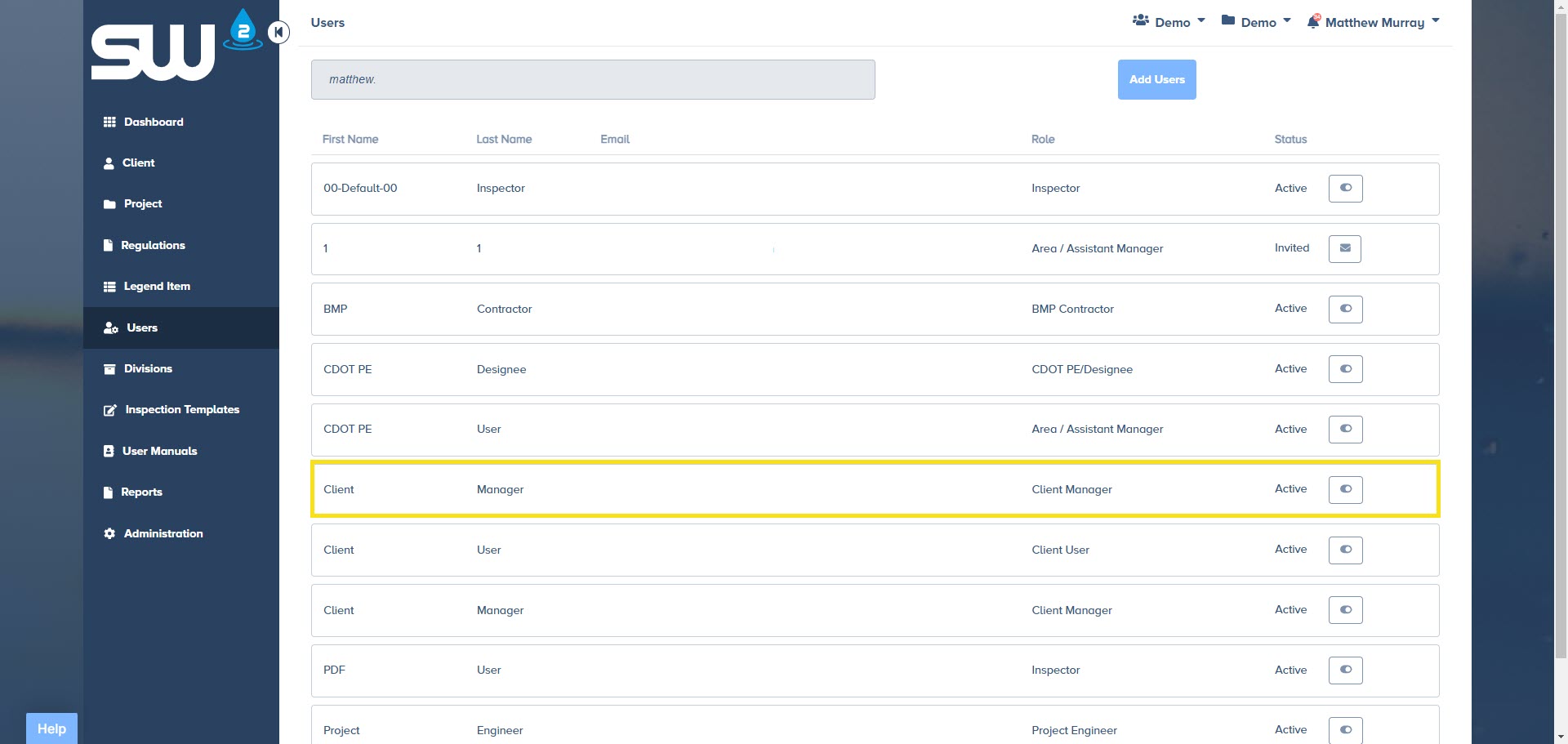
A user’s access to projects and or clients may be edited at any time through the Users Page. From here you can:
- Change contact information
- Change User Role type
- Provide access to Divisions, Clients, and or Projects.
- Remove Divisions, Clients, and or Projects.
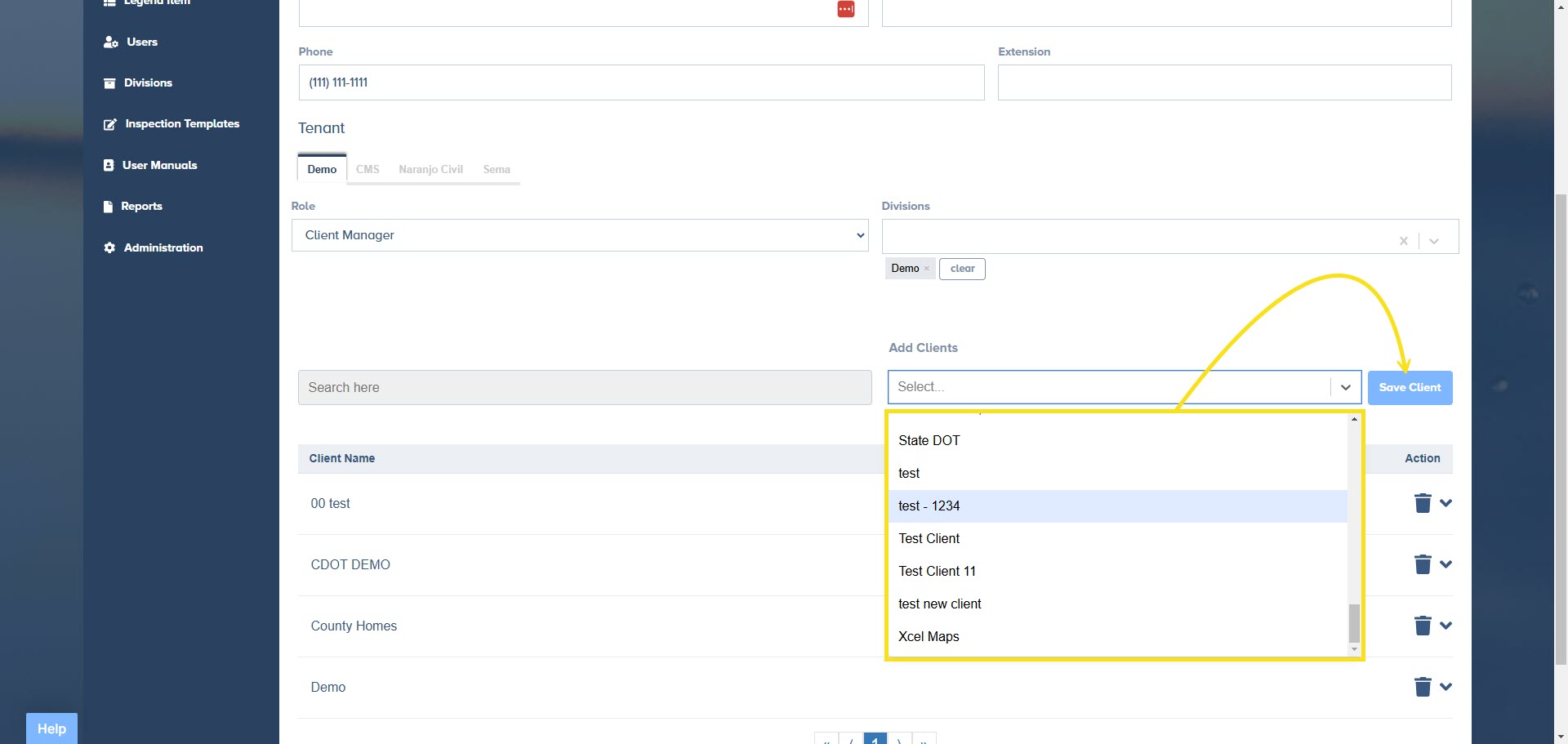
Use Add Client bar to provide access to additional clients for a user.
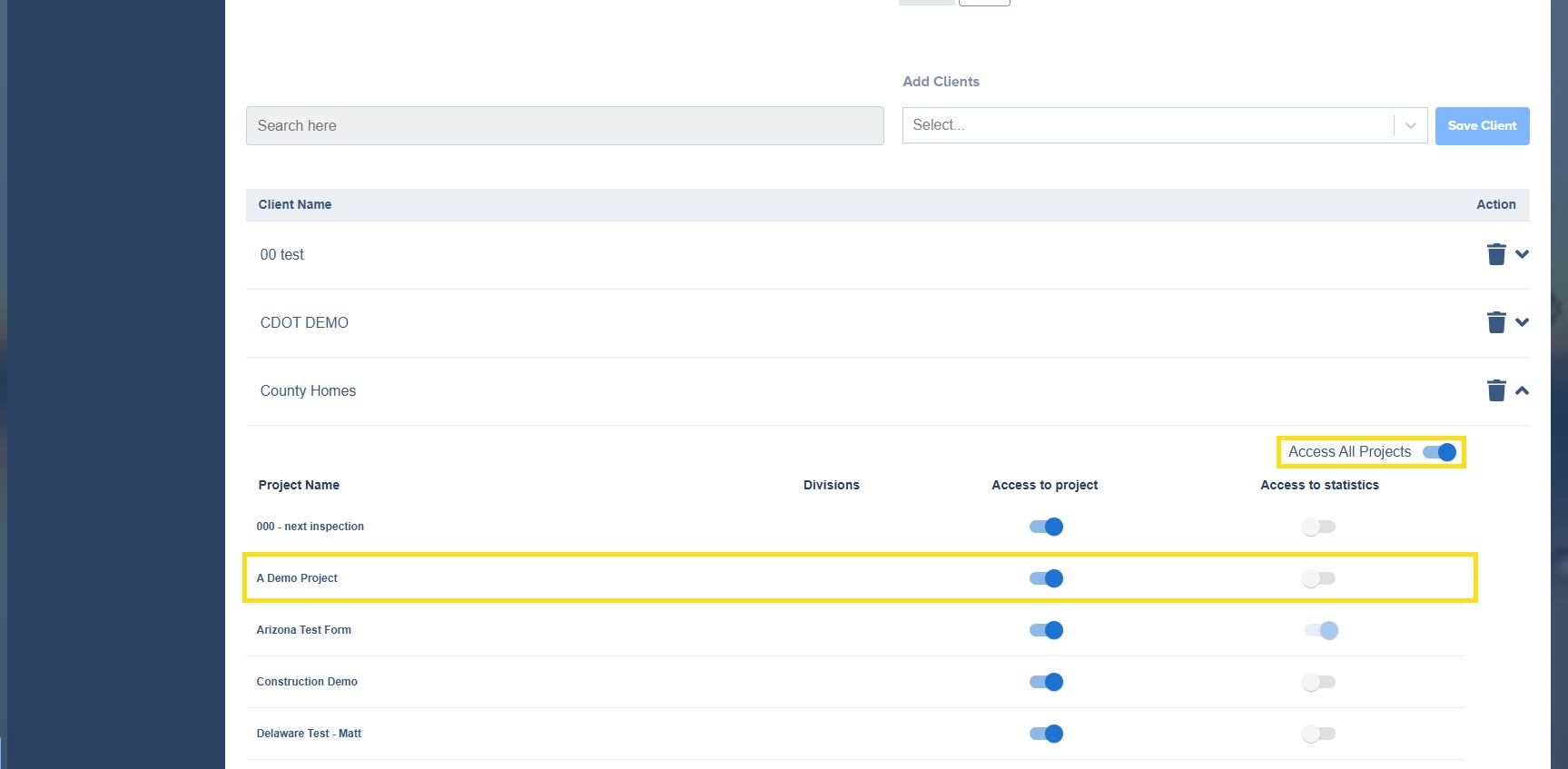
Click on a Client to see a drop down of projects that a user can be assigned to. Under the Access to Projects column you can toggle to either give or revoke access to a specific project. You may also choose to use the Access All Projects feature whcih will ensure that the user automatically has access to any new projects moving forward.
Save your work!
Managing a Users Notifications
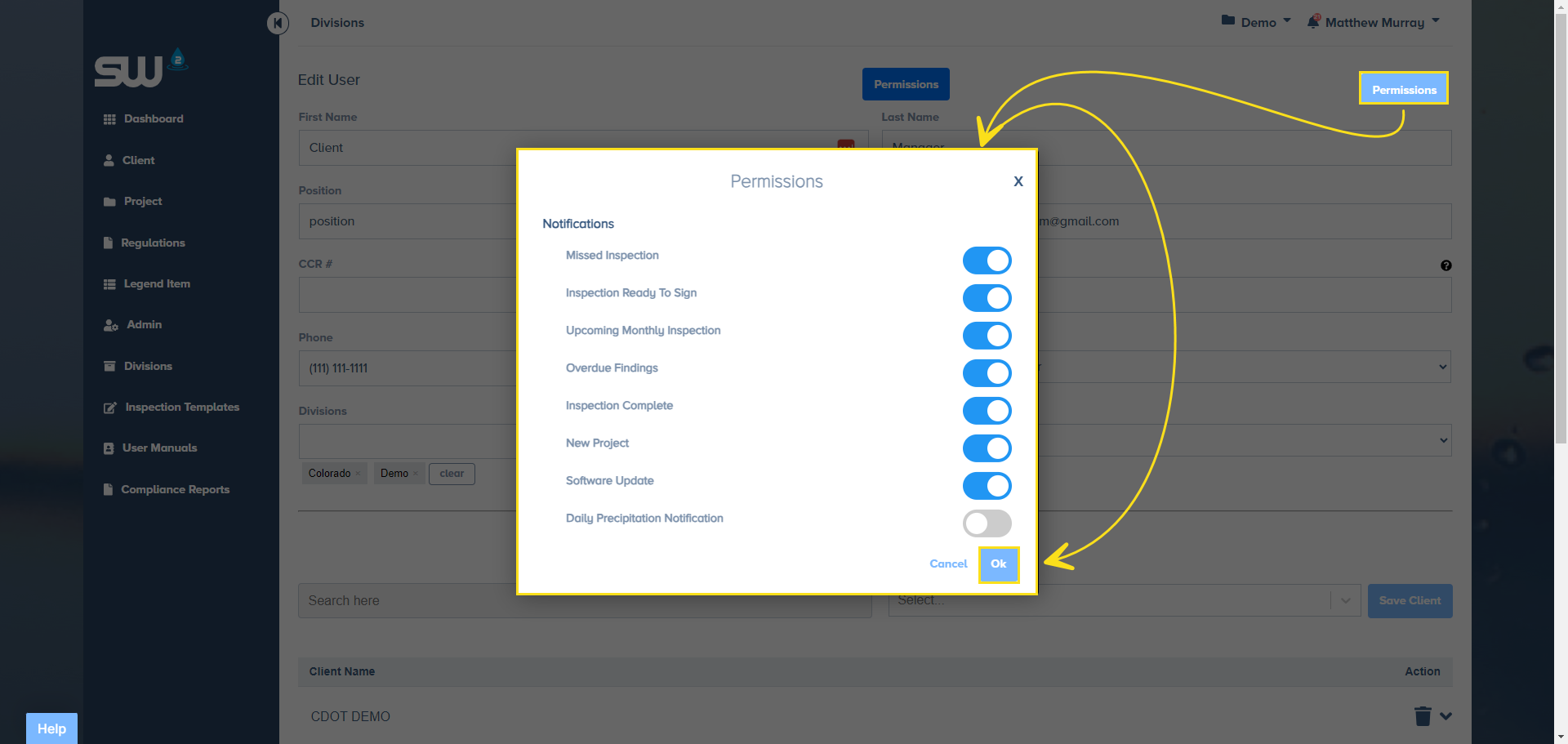
Certain user roles have access to turn notifications on or off for other users. To manage another users notifications, access the Permissions button located at the top right corner of a users profile within the Users page.
Managing Users via Contacts Tab
Adding a user via the Contacts tab give a user access to that project within SW2. Additionally removing a user from the Contacts tab within a project revokes access.
Access the Contacts tab within a specific project.
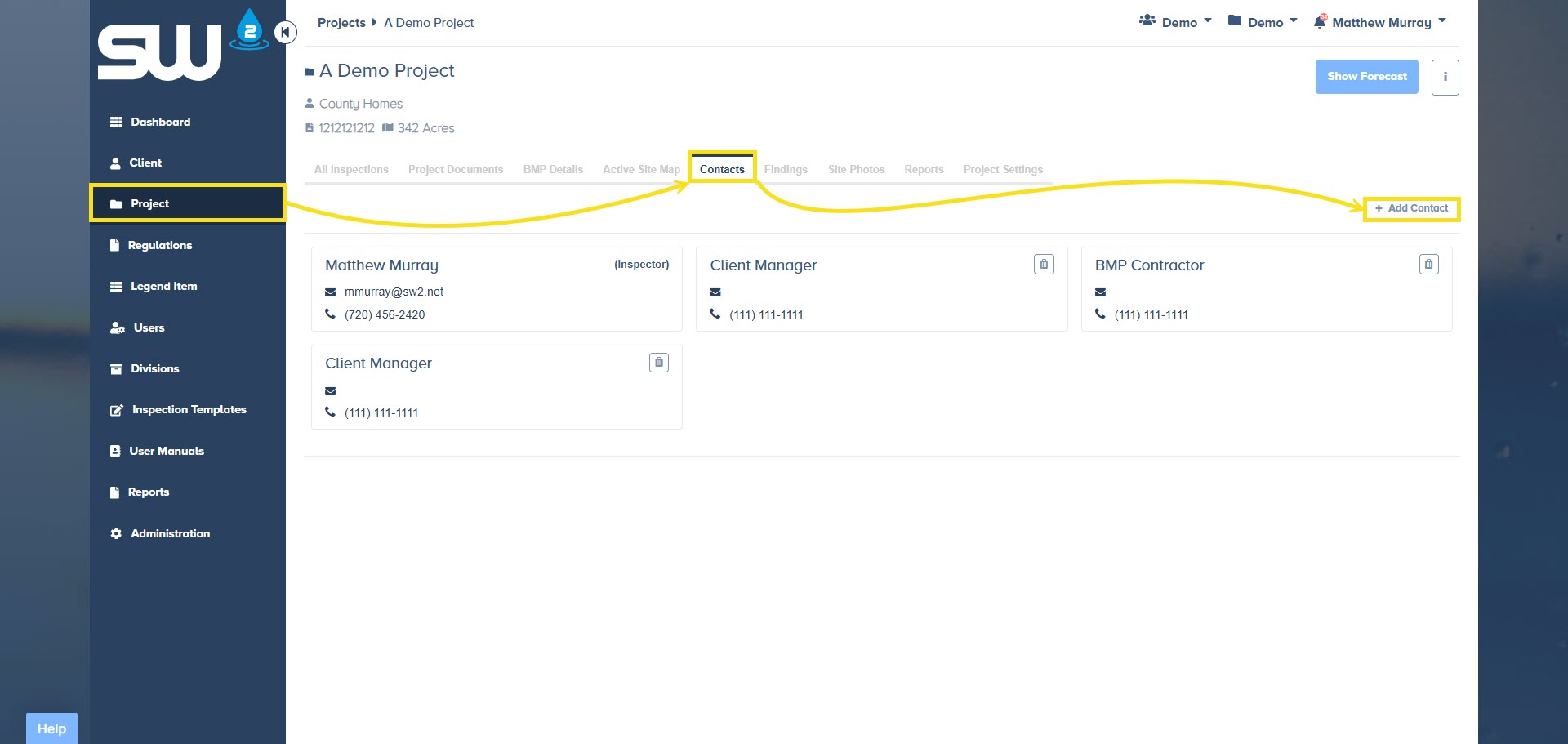
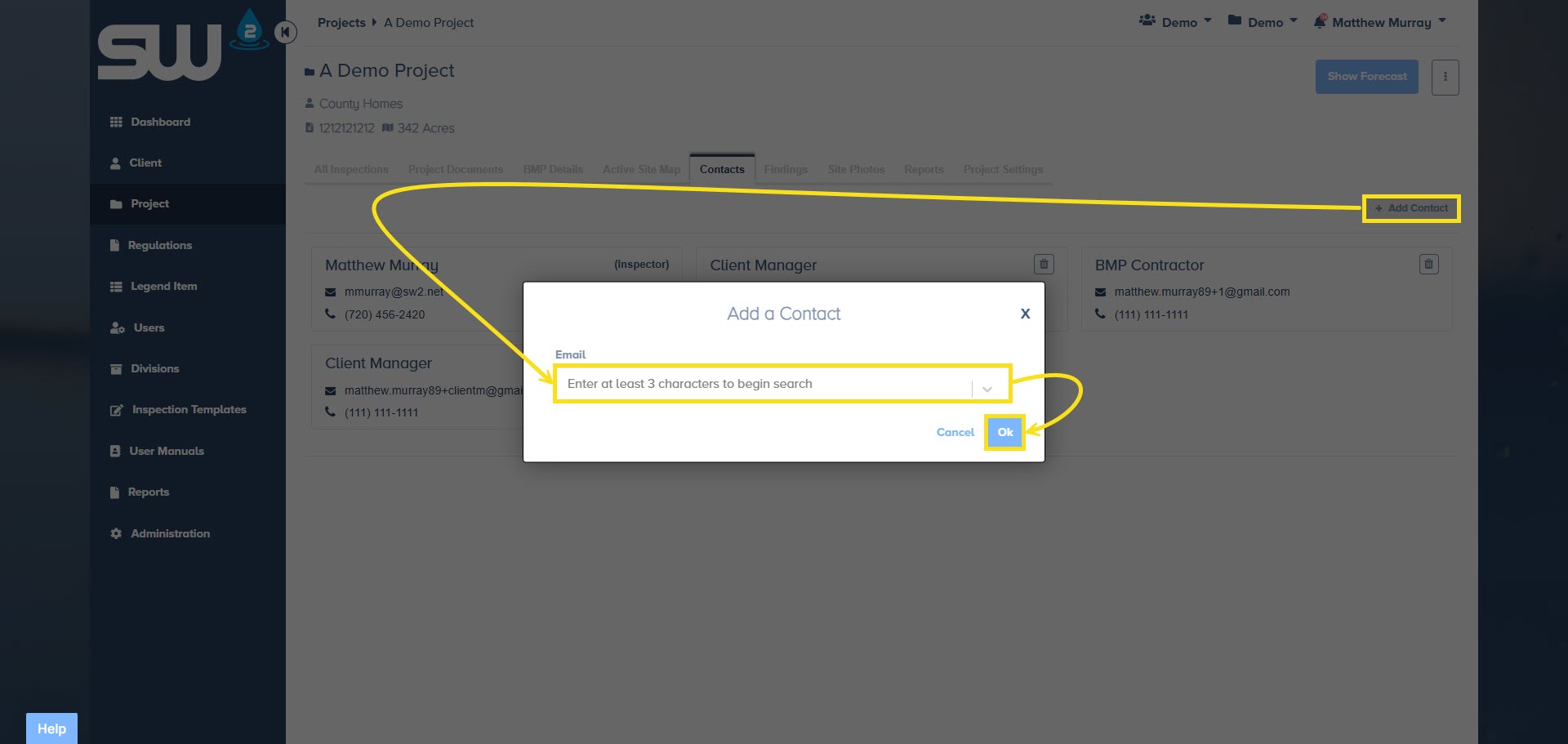
Click on Add Contact located on the right side of the screen. Note that users listed in the drop down have already been invited to the system. If a contact is not showing up as an option, they will need to either be invited to the system or assigned the appropriate Division, through the Users Tab.