SW2 offers an advanced digital project document storage and management system that allows users to easily store, access and update documents from just about anywhere. Documents are separated out into different folders making it easy to find and update specific files. User’s have the option to either use the system default folders or to create custom folders names to match the terminology and language used by each organization. Custom folders are created and managed at the client level.
To create and manage the available project document folders, first access a specific client’s page and access the client settings tab.
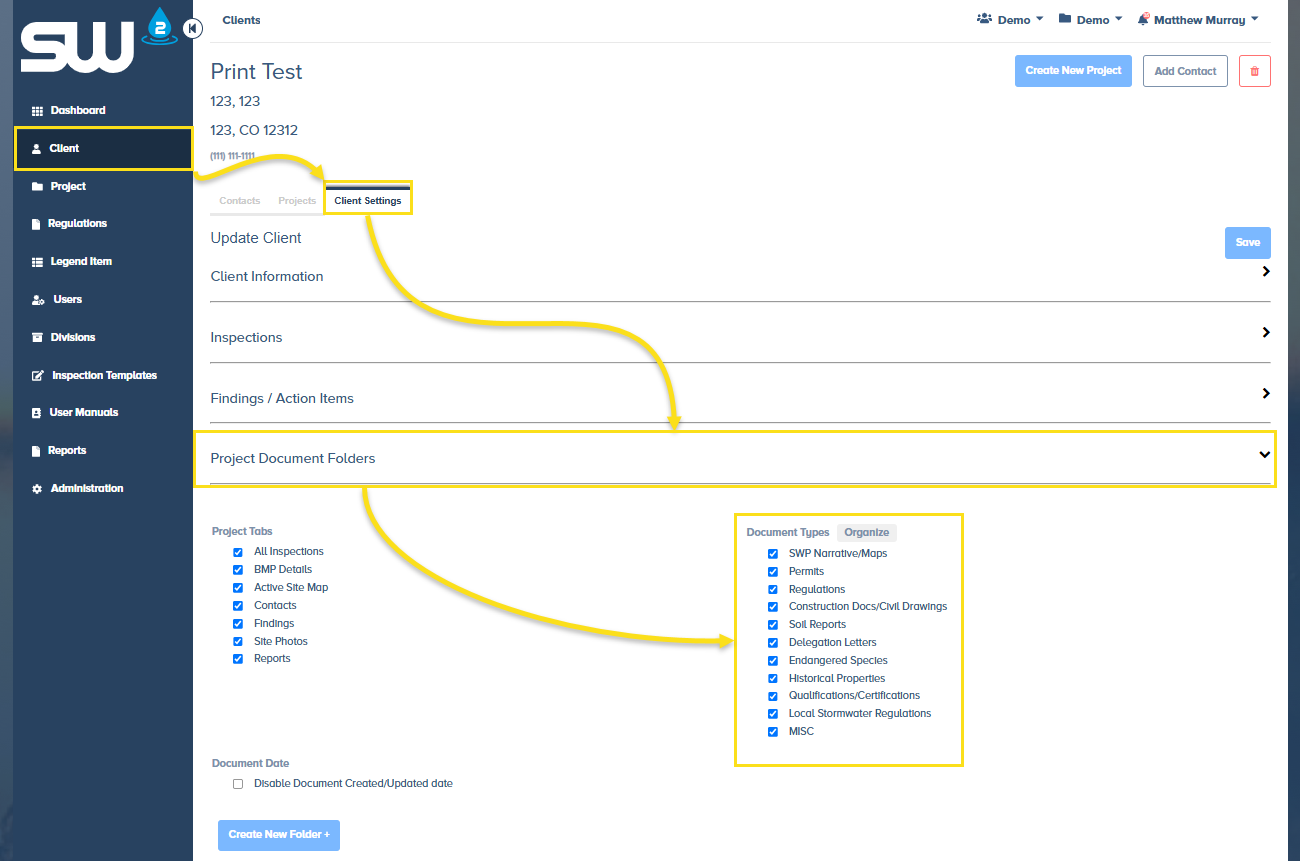
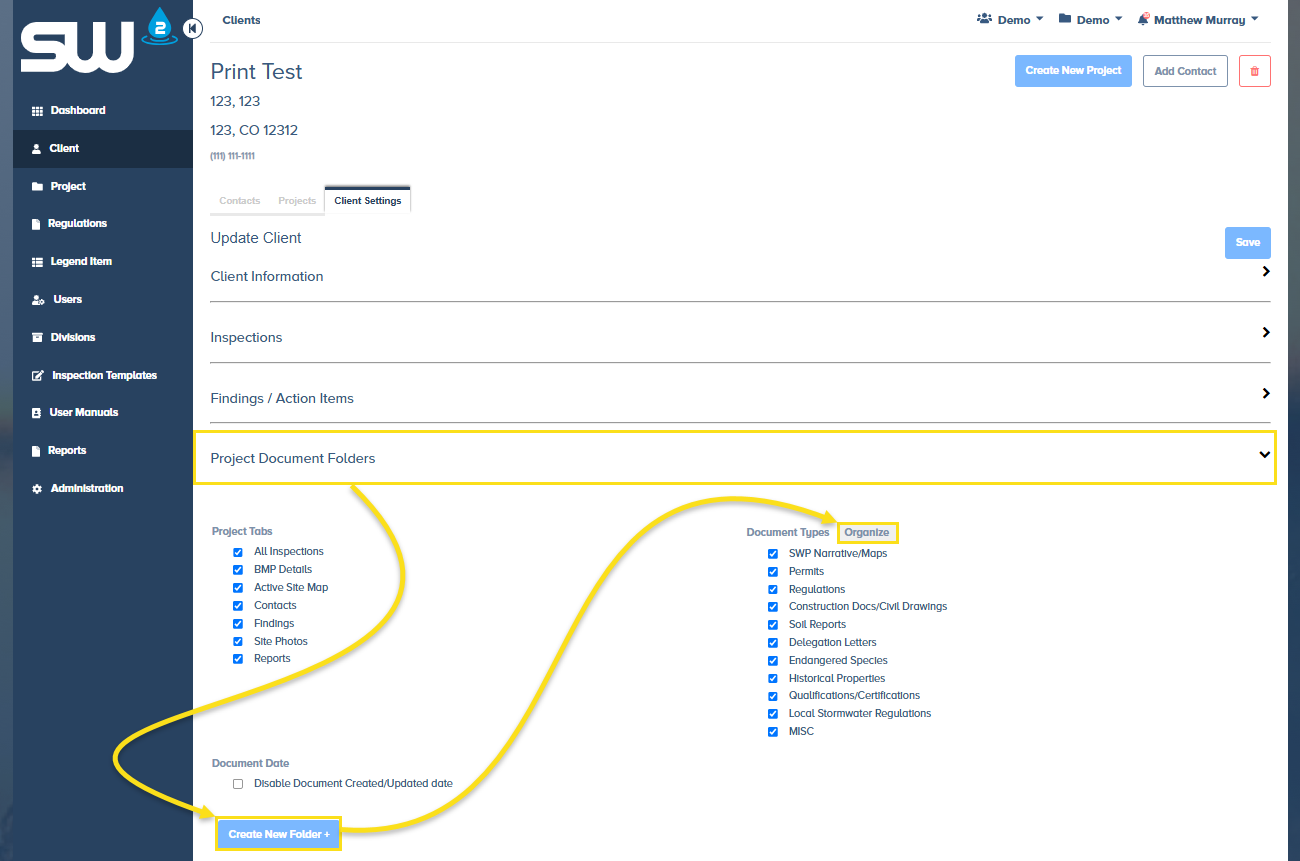
Located within the client settings tab is a the section titled Project Document Folders. In this section users can select or deslect folders that will be availble to all projects created under this client. Users also have the ability to create new, custom folders and re-organize each folder to appear in the order that is required. Once this is set up any and all projects created under this client will have follow this folder access and structure.
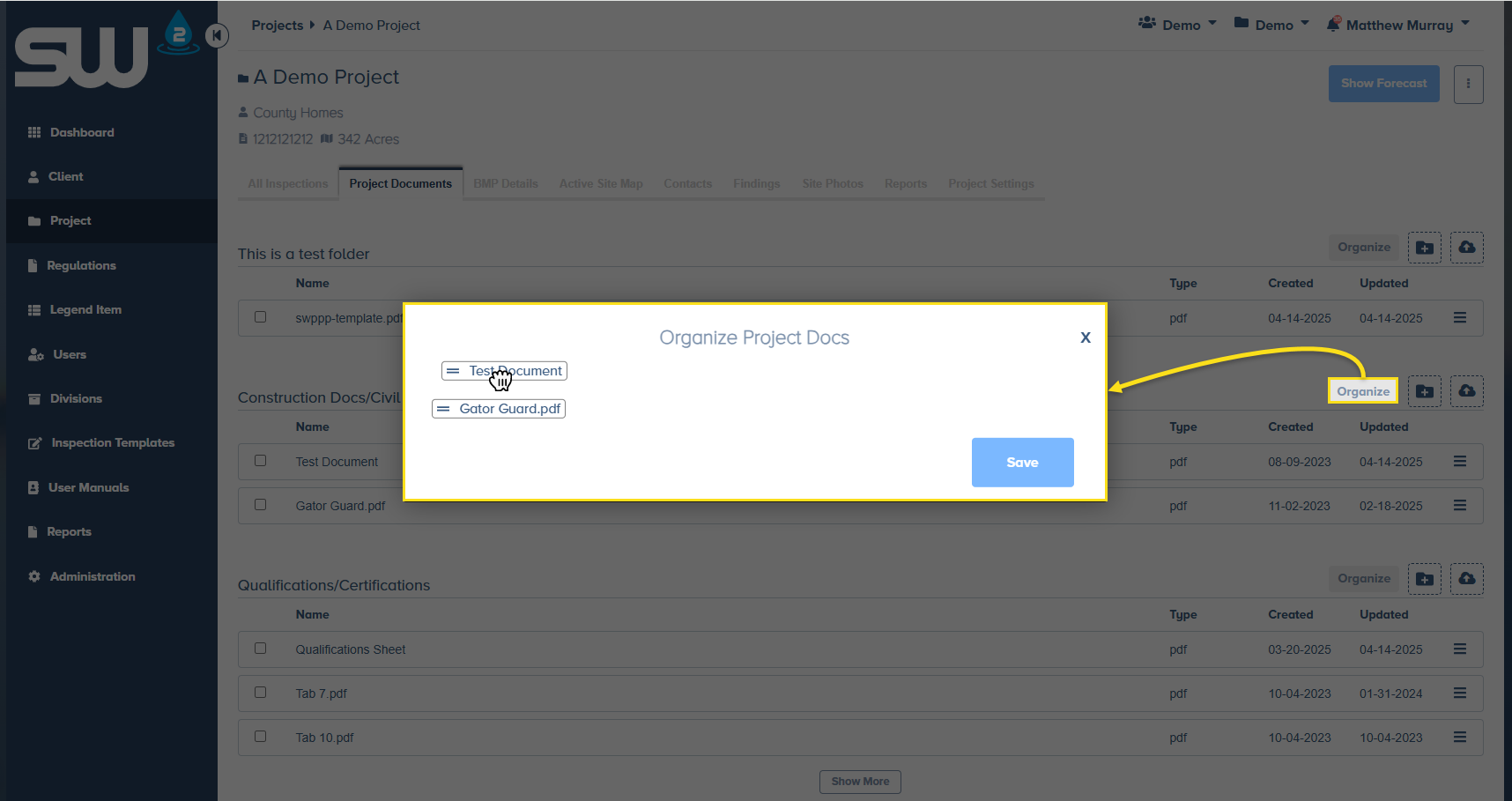
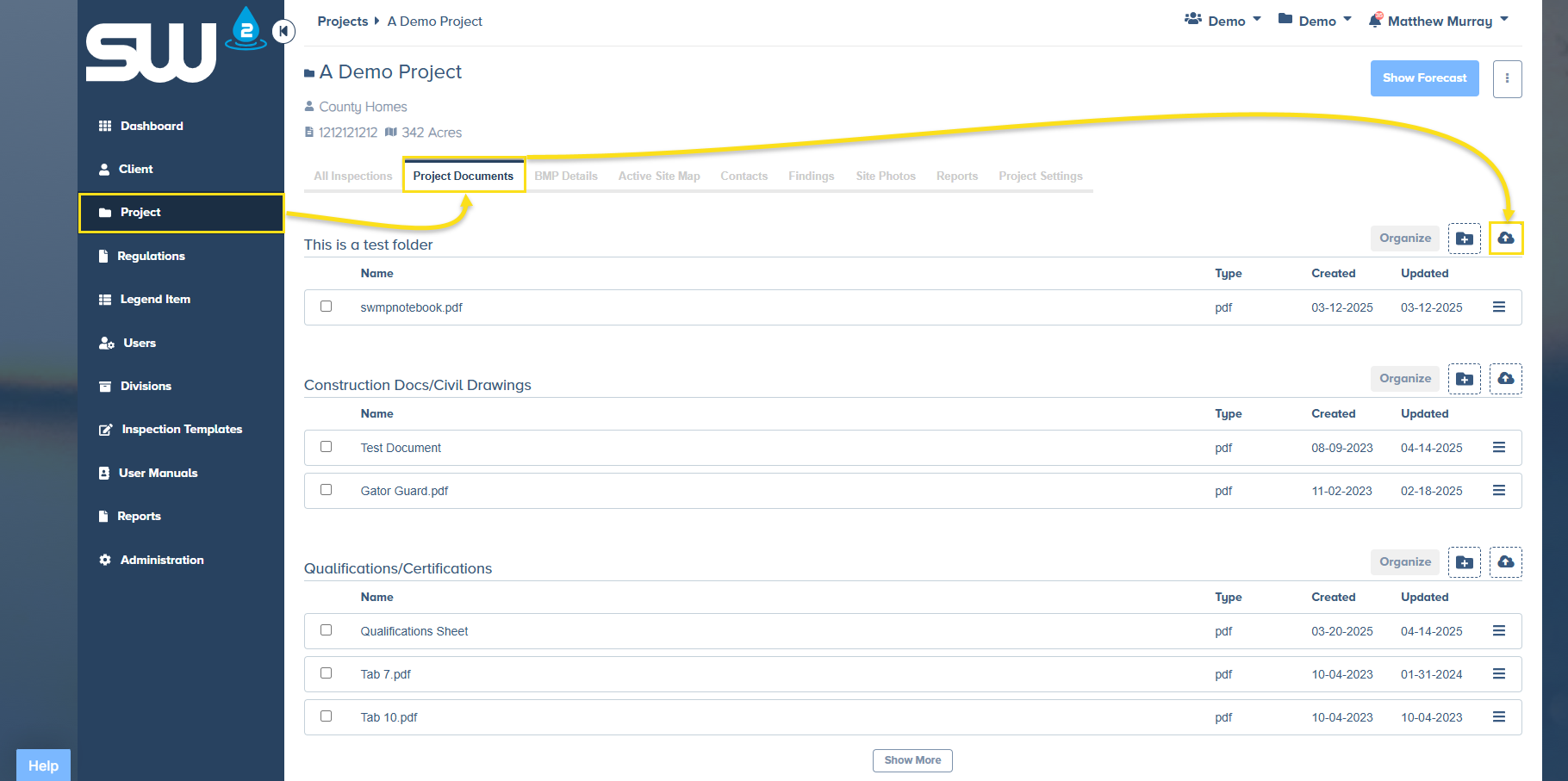
To start uploaded filed to each project, simply access a project and move to the project documents tab. Each folder has an upload button where one or more files may be uploaded as a given time. Please note that file must be uploaded in one of the approved formats which include PDF, JPEG, PNG. Once files are uploaded users can click and drag them up or down in the list to ensure they are the correct order.
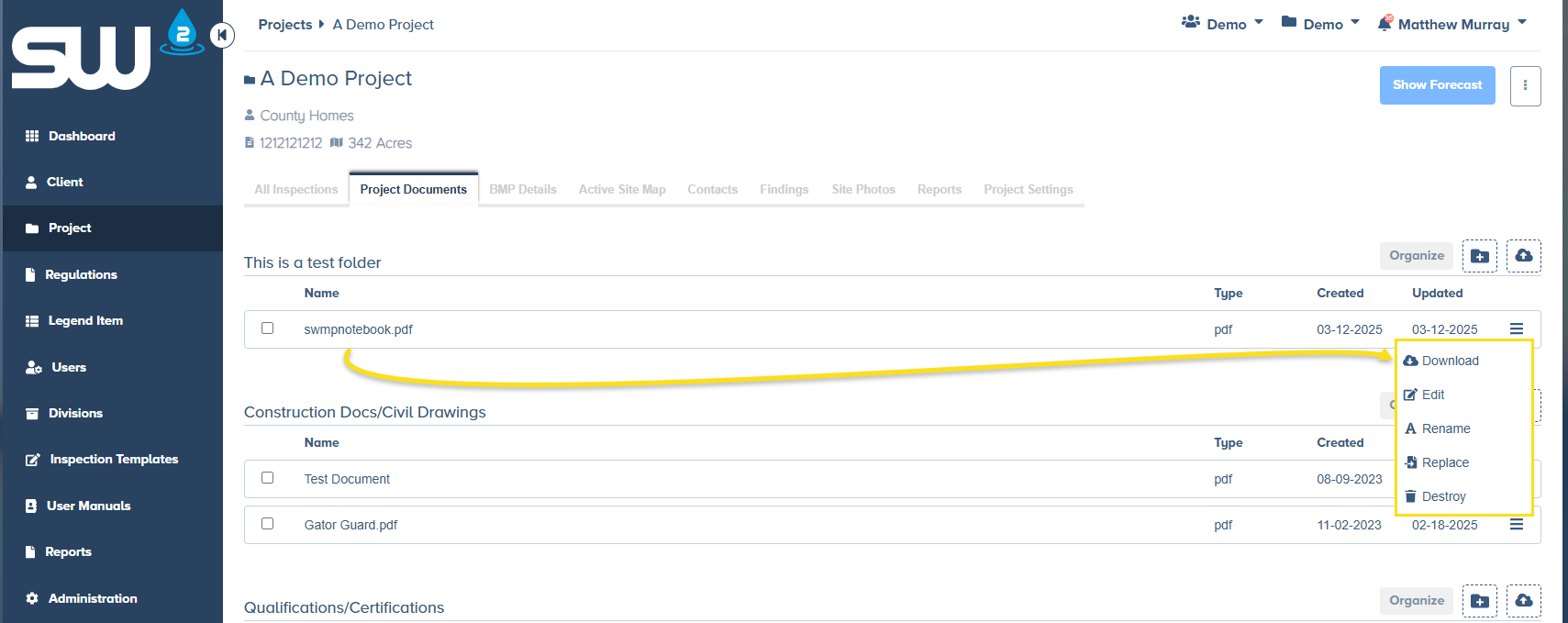
SW2 is integrated with the top of the line PDF editing capabilities. To start editing a PDF document user need to use the file menu and select the Edit option. Some other options that are available include:
- Download
- This will allow users to download or print a specific fie.
- Rename
- This will allow users to alter the existing file name.
- Replace
- This update will allow users to replace a file while keeping any updates made by users. This is especially useful when an amended/new base version of a file is available and users don’t want to go through the effort or making all previous updates all over again.
- Destroy
- This deletes the file from the folder and project.
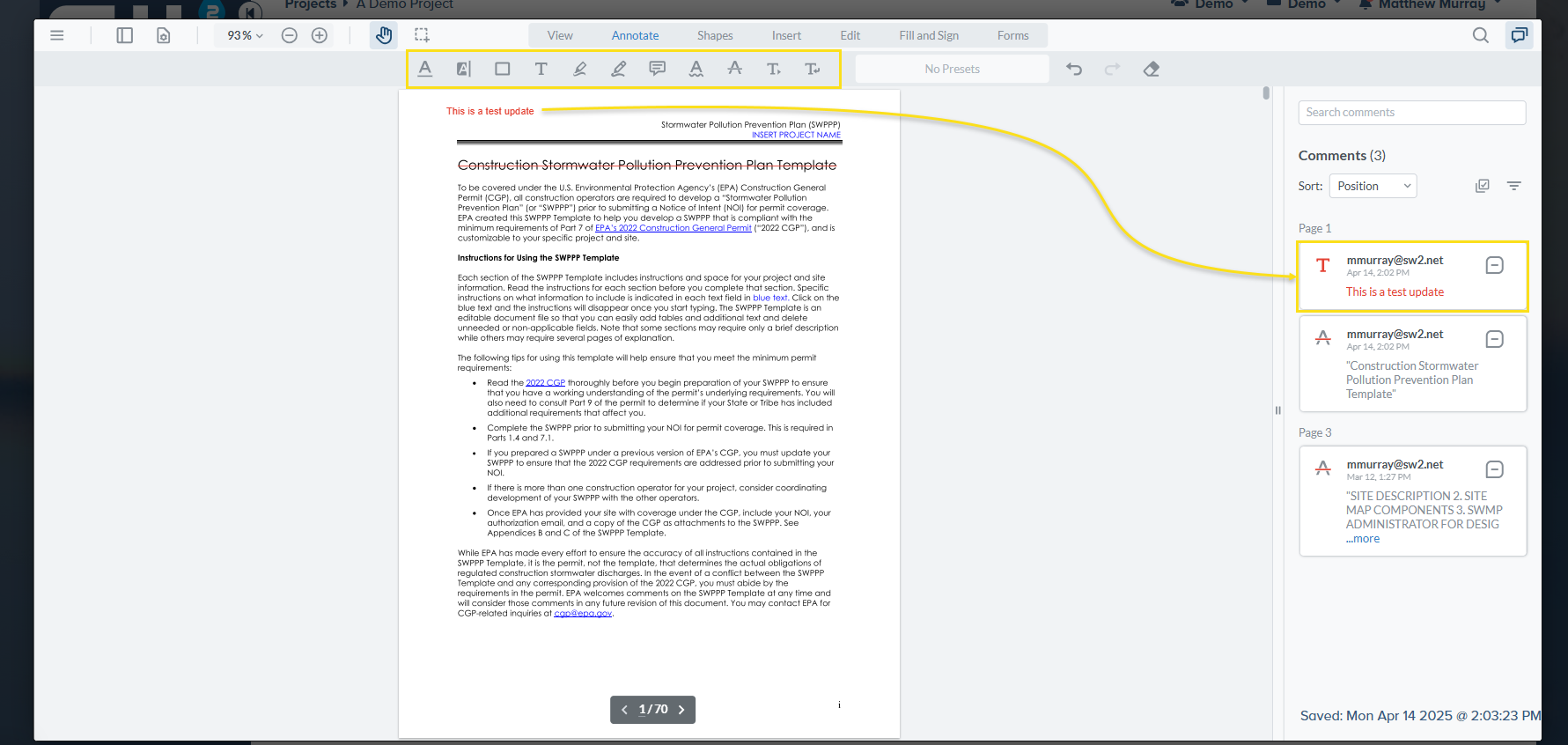
When a user edits a PDF document they have quite a few tool at their disposal, some of the more popular tools under the annotate tab include: Text box, strikethrough, underline and highlight. Every time an update is made the system automatically saves the changes and the amendment/changelog is updated. When a PDF is downloaded these changes appear as comments in the file.
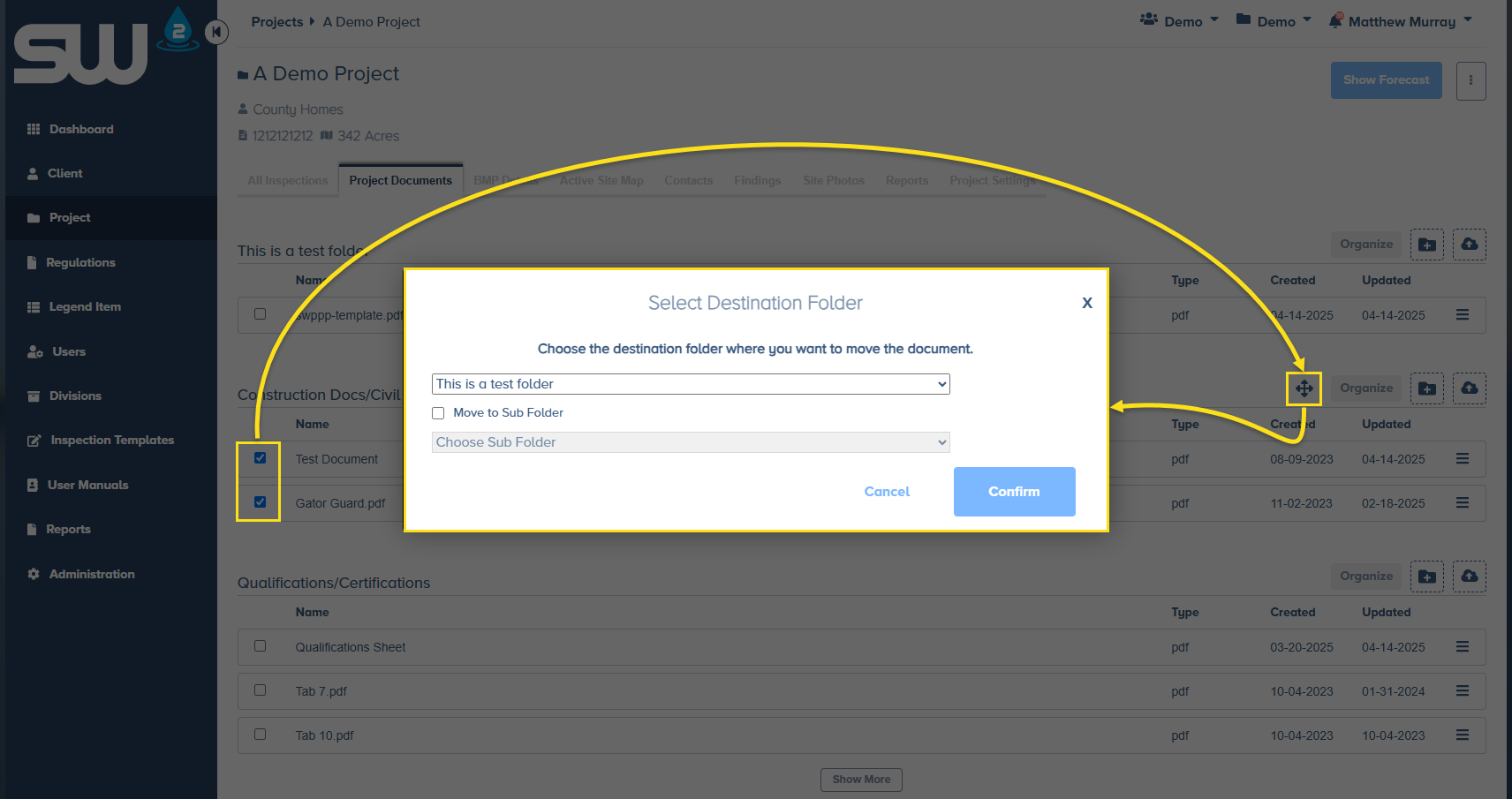
Sometimes, files are accidentally uploaded to the wrong folder. SW2 makes it easy to move one, multiple, or all files to a new location. Simply check the box next to each file you want to move, then click the Transfer button that appears in the folder header. A pop-up window will appear where you can select the new folder location. Click OK to confirm the transfer
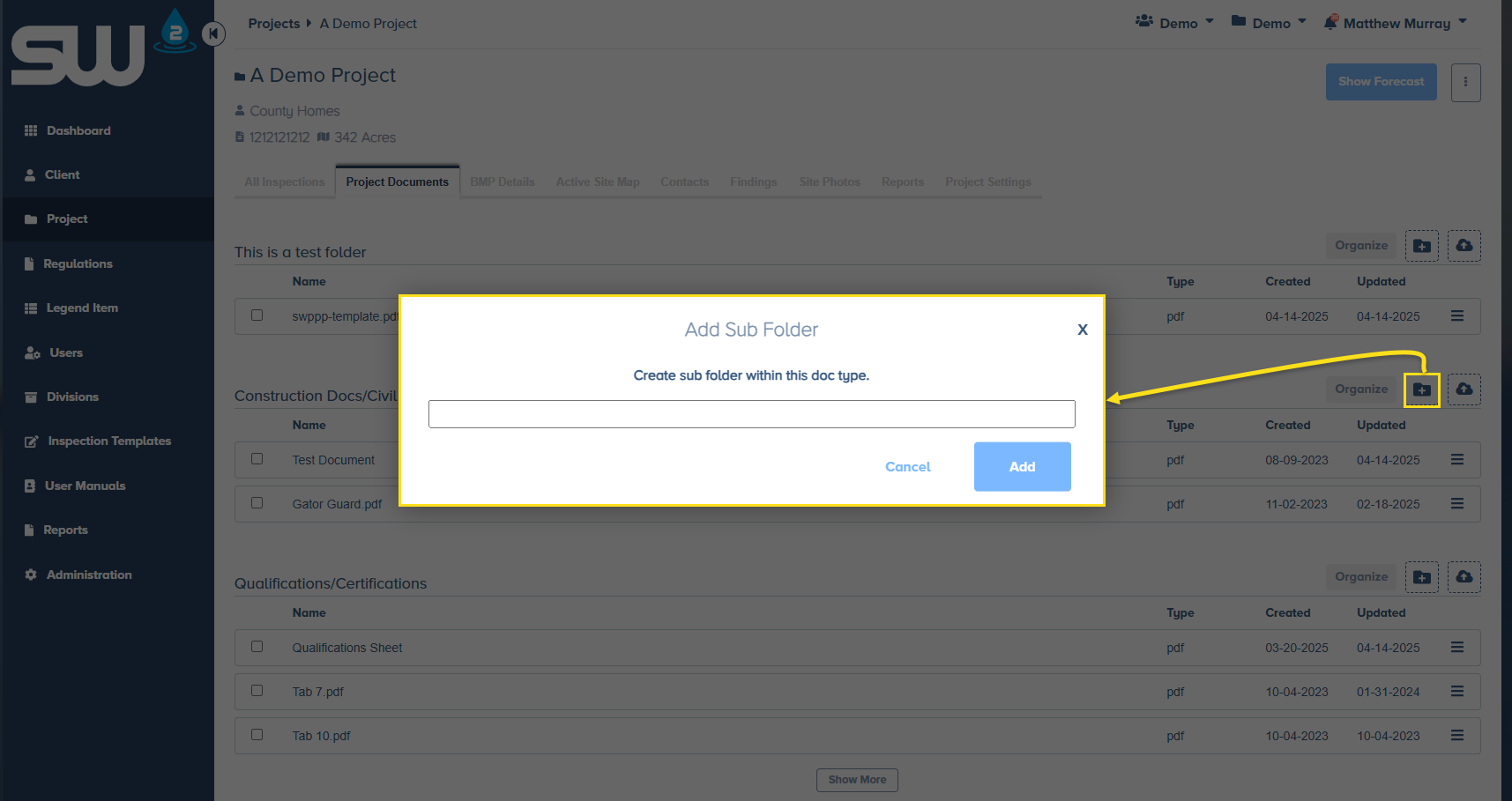
To help users organize their files more efficiently, SW2 offers the ability to create subfolders within any existing folder. To create a subfolder, navigate to the desired parent folder and click the New Subfolder button. A pop-up window will appear where you can enter the subfolder name. Once created, subfolders can be used to categorize files by project, document type, or any other organizational need. Click Add to finalize and add the new subfolder.
SW2 also allows users to organize files within each folder or subfolder. Simply click on the Organize button to bring up a pop-up that will allows user to click and drag files up or down in the list.